Live Chat for Teams: Add Agents, Choose What They Can Do, and Route Chats to Sales or Support
Live chat for teams in LiveChatBot is built for small groups who share the work: add teammates in a minute, decide who can only answer chats and who can change settings, and group people into teams like Sales or Support so the right people get the right chats and alerts.

⚡ In short
- Team page: add a teammate with name, email and a temporary password, and choose what they can do.
- Two roles: “Answer chats only” or “Everything, including websites and team”.
- Teams like Sales or Support list the topics they handle; chats needing a person go to the matching team, and that team’s phones get the alert.
- Everyone still sees every chat in the shared inbox, so nothing is hidden or lost.
Real screens
The Team page, the inbox your team shares, and personal alerts
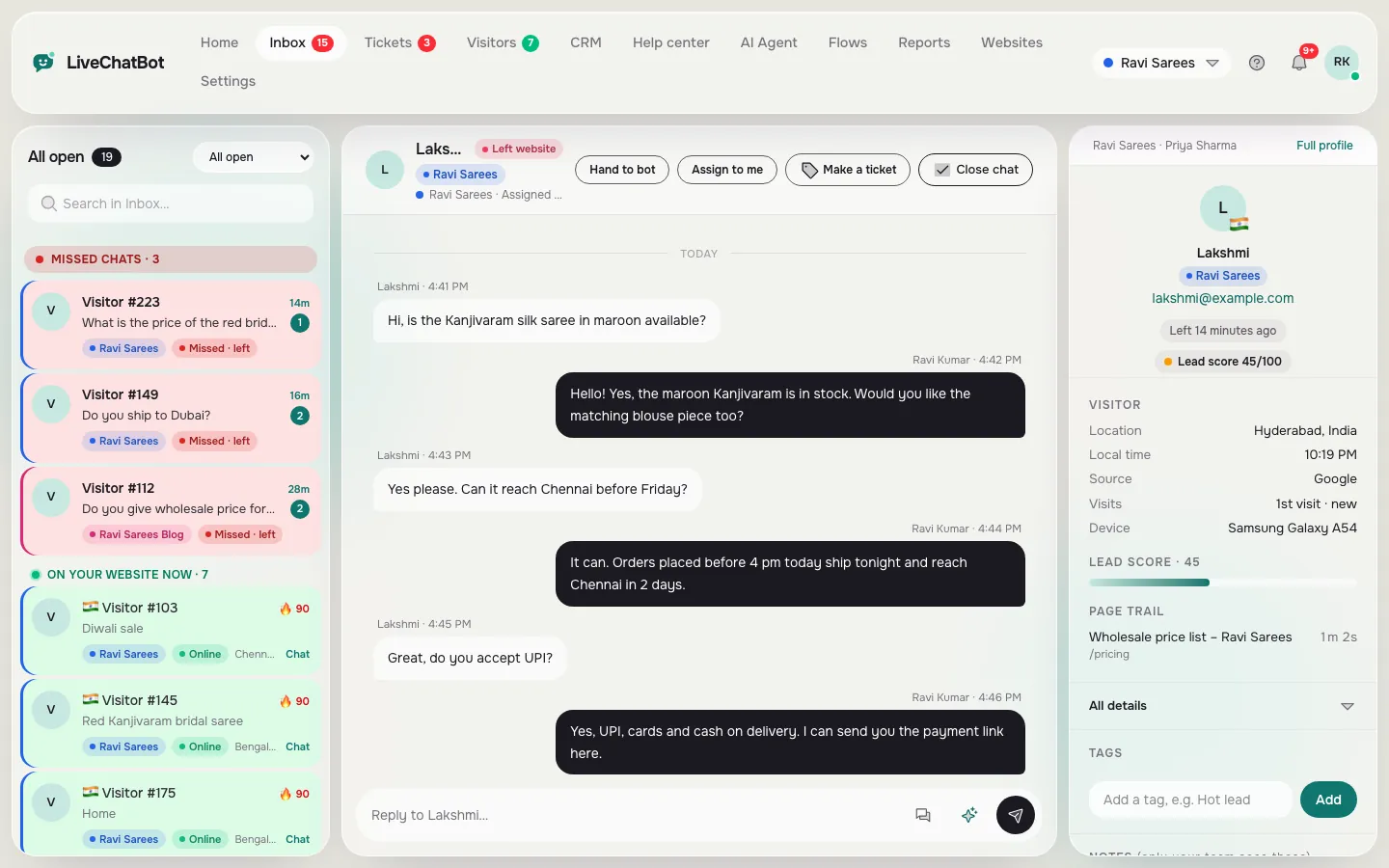
Real screens from the LiveChatBot panel, shown with sample data. Click any picture to see it full size.

Why
Chat gets harder the moment two people answer
One person answering chat is simple. Two or three people answering is where things go wrong: two replies to the same visitor, a chat nobody picks up because everyone thinks someone else has it, a new hire who accidentally changes the chat colors, or a sales question answered by someone who does not know the prices.
A team setup solves these with three simple tools: roles (who can change what), assignment (who owns a chat) and teams (which group handles which topics). None of them need training; they are a few buttons on the Team page and in the inbox.
Good live chat for teams also means the visitor never notices the hand-offs. They see one business answering, in one voice, without repeating themselves, even if three people touched the conversation.
Adding people
Add a teammate in one minute
Open Team and fill in Add a teammate: name, email and a temporary password. Share the password with them; they can change it after logging in.
Choose what they can do
- Answer chats only: they can answer chats and work in the inbox, but cannot change websites, billing or the team. Right for most agents, part-timers and interns.
- Everything, including websites and team: full access, including settings and billing. Keep this for owners and managers.
The list shows everyone on your team, their role, and whether they are online or offline right now, so you know who is covering chat.
Teams
Group people into teams and route chats by topic
Below your people, the Teams section lets you create groups such as Sales, Support or Billing. For each team, list the topics it handles, for example “price, quote, bulk order” for Sales, or “return, refund, delivery” for Support, and add its members.
When a chat needs a person, it goes to the team whose topics the visitor mentions, or the team the AI Agent picks. That team’s phones get the alert, so Sales is not disturbed by return questions and Support is not disturbed by bulk quotes.
Everyone still sees everything
Teams decide who is alerted and who owns a chat. They do not hide chats. Everyone can still see every conversation in the shared inbox, and each team gets its own folder there, so a manager can watch all of them.
Day to day
How a team works through the inbox
In the inbox, each chat shows who it is assigned to. Assign to me takes ownership; the assign menu passes it to a teammate. Folders like Needs a reply, Unassigned and My open split the work so nobody has to read the whole list.
Private notes on a chat or a visitor profile are visible to the whole team, which makes hand-offs painless: “Promised a call on Friday, see note” is all the next person needs. Shared saved replies keep answers consistent whoever is typing; see canned responses.

Alerts
Everyone sets their own alerts
Each person chooses their own alerts in Settings → Notifications: sounds, browser pop-ups and the Android app, with a different tone for each website if they like. A night-shift person can keep phone alerts on while daytime staff switch them off after work. See the mobile app page for how phone alerts work.
The dashboard is also available in several languages, so each teammate can use the panel in the language they read best.
Onboarding
Onboarding a new agent in fifteen minutes
A new person on chat needs three things: access, answers and a safety net. Live chat for teams in LiveChatBot covers all three without training sessions.
- Access. Add them on the Team page with Answer chats only, so they cannot change settings by accident.
- Answers. Show them the saved replies and the help articles. Most questions are already answered there.
- A safety net. Tell them to use Assign for anything they are unsure about, and to write a private note before handing over.
- Alerts. Ask them to install the Android app or allow browser pop-ups, and pick a tone they will notice.
- A first shift with a buddy. For the first day, keep an experienced person online too, and read a few of the new person’s chats together at the end.
After a week, check Reports to see their reply times and any thumbs-down ratings, and add new saved replies for the questions that slowed them down.
Setups
Three ways to set up live chat for teams
Owner plus one
The owner keeps full access; one helper answers chats only. No teams needed.
Sales and Support
Two teams with clear topics. Bulk and price questions alert Sales; delivery and returns alert Support.
Shifts
Everyone answers chats only; morning and evening people switch their own phone alerts on and off.
Good to know
Honest limits
No per-seat fee
Add the people you need; the plan is priced by websites and visitors, not seats. See pricing.
Two roles
There are two roles: answer chats only, or full access. There are no custom permission sets.
No internal team chat
Teammates talk through private notes on chats, not a separate staff chat.
Get started
Bring your team in today
Create a free account at livechatbot.in, add the chat to your website and open Team. Add one teammate with Answer chats only, then create a Sales team with a few topics if you get pricing questions. Send a test chat that mentions a price and check who gets the alert. Write five shared saved replies so every answer sounds the same, and you have live chat for teams that runs smoothly from day one.
Frequently asked questions
How do I add an agent?
Open Team, fill in name, email and a temporary password, choose what they can do, and press Add to team.
Can an agent change my settings?
Not if you choose Answer chats only. Only people with full access can change websites, billing and the team.
How are chats routed to a team?
Each team lists topics. When a chat needs a person, it goes to the team whose topics the visitor mentions, or the one the AI Agent picks.
Do teams hide chats from others?
No. Everyone still sees every chat; teams decide who is alerted and who owns it.
Do I pay per agent?
No. There is no per-seat fee.
Keep reading
Related guides
Shared Inbox for Website Chat: Every Conversation From Every Website in One Place
Live Chat for Multiple Websites: One Account, One Inbox, a Different Look for Every Site
Answer chats together, without stepping on toes
Roles, teams, assignment and shared replies for small teams. Start free on livechatbot.in.