Live Chat for Multiple Websites: One Account, One Inbox, a Different Look for Every Site
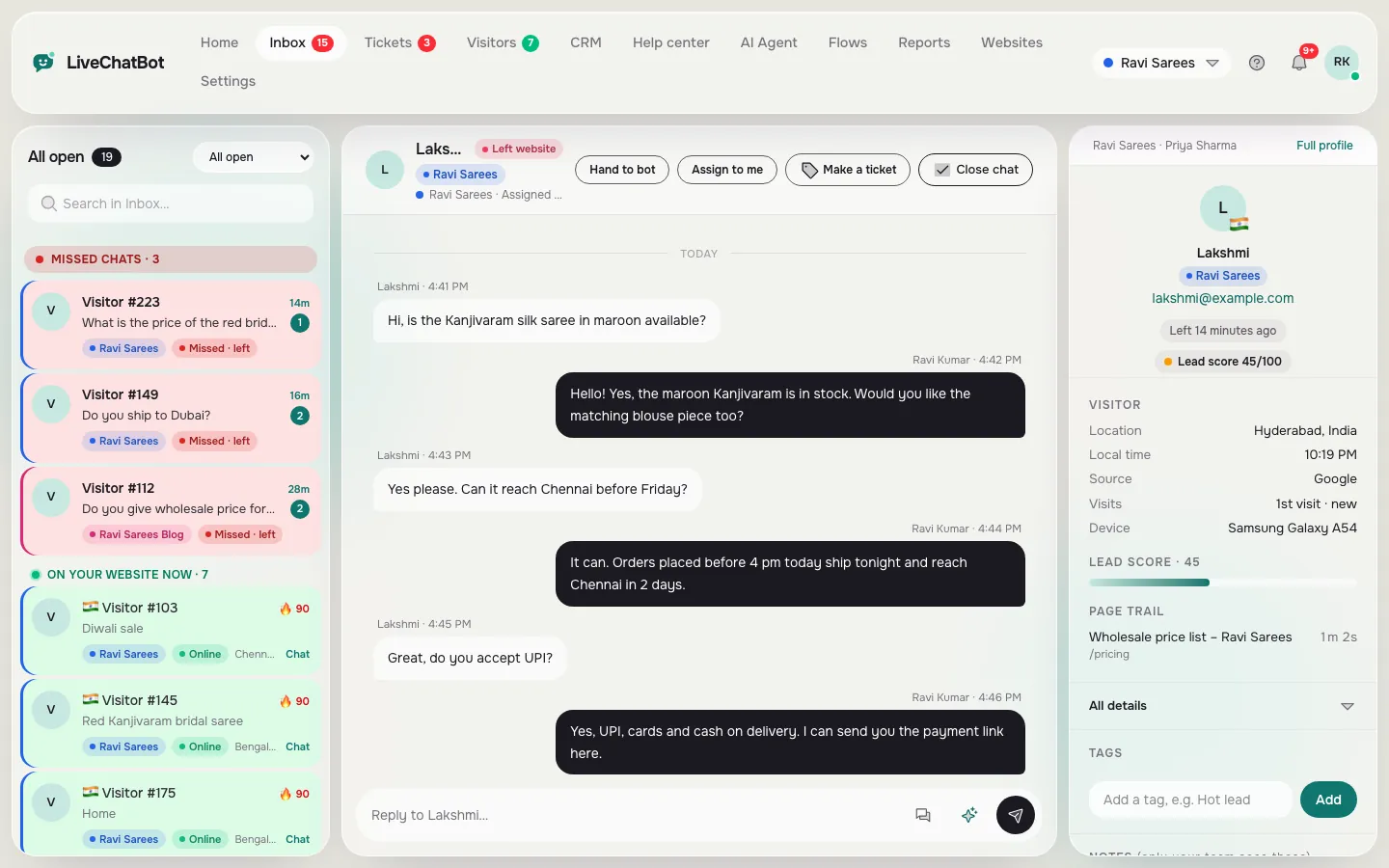
Live chat for multiple websites works in LiveChatBot without extra logins: add every site to one account, give each its own chat design, AI Agent, Flows and opening hours, and answer all of them from one shared inbox. A color label on each chat tells you which website it came from.

⚡ In short
- Add websites from the Websites page; each gets its own chat code, design, language and settings.
- All chats arrive in one inbox, with a color label per website and a filter to focus on one.
- Each website has its own AI Agent knowledge, Flows, opening hours and monthly visitor count.
- Switch the website you are editing from the top bar.
Real screens
Your websites, one inbox, and per-site design
Real screens from the LiveChatBot panel, shown with sample data. Click any picture to see it full size.

Who it is for
Who runs more than one website
Running several sites is more common than it sounds, especially for small businesses:
- A shop with a separate blog or a wholesale site.
- A business with two brands that sell to different customers.
- A clinic or coaching center with a website per branch or city.
- A freelancer or agency that looks after client websites; see live chat for agencies.
- A company with a main site plus landing pages on their own domains for ads.
Without a multi-site setup, each of these means another chat tool, another login and another app making noise on your phone. With one account, everything comes to one place.
The real cost of many chat tools is not the subscription, it is the missed messages. When chats are spread over three dashboards, the quiet site gets checked last, and its visitors wait longest. Live chat for multiple websites in a single inbox fixes that: every visitor is in the same list, with the people who still need a reply grouped at the top.
Adding sites
How live chat for multiple websites is set up
Open Websites and press Add a website. Give it a name and its address. LiveChatBot creates a new chat code just for that site; paste it into the site, or use the WordPress live chat plugin for WordPress sites.
The Websites page then shows a card for each site with:
- Open chats waiting on that site.
- Install status, so you can see the chat is really live there.
- Visitors this month against that site’s allowance.
- Quick buttons to Open its inbox view or its Settings.
To change settings for one site, pick it from the website switcher in the top bar. Every settings page then applies to that site only.
Per-site settings
What each website gets on its own
Design and language
Each site has its own colors, chat button, position, welcome text and language. A wholesale site can sound formal, a fashion blog friendly. See chat widget customization.
AI Agent knowledge
Each site’s AI Agent learns from its own knowledge: FAQ entries, pages and files for that brand. The blog’s AI does not answer with the wholesale price list.
Flows and opening hours
Greetings, offers and exit messages are set per site, and so are opening hours. A branch that opens at 9 can have different hours from one that opens at 11.
Visitors and limits
Visitor counts and allowances are per website, so a busy site does not use up a quiet one’s allowance. See pricing for how websites and visitor packs work.
One inbox
Answer every site without switching tabs
All chats from all sites land in one shared inbox. Each row shows the website name with its color, so you know which brand voice to use before you read the message. Use the filter at the top of the list to see one site at a time when you want to focus.
Alerts work the same way. Your phone and browser tell you about new chats from every site, and you can give each website its own alert sound, so you can tell the shop from the blog without looking at the screen.

Patterns
Three ways teams set up live chat for multiple websites
One person, many sites
An owner answers all sites from one inbox and uses color labels and alert sounds to tell them apart.
A team per brand
Teams like Shop and Wholesale get their own inbox folders; chats are assigned to the right team.
Agency and clients
The agency answers or monitors client sites, with separate designs, AI knowledge and reports per client.
Reports
Reports for live chat for multiple websites
Every report has a website filter. Look at one site to see its chats, reply times, leads and traffic, or choose all websites for the combined picture. It is a simple way to see which brand brings the most inquiries and which one needs more attention. See live chat reports.
Planning
Before you add more sites: a short checklist
A little planning keeps a multi-site setup calm instead of noisy. Work through these before you add your third or fourth website.
- Name sites clearly. Use names your team recognises at a glance, like “Shop” and “Wholesale”, not the full domain.
- Pick a color per site. The color label is how people tell chats apart in a busy inbox.
- Give each site its own knowledge. Copy only the FAQ entries that apply; wrong answers from another brand confuse customers.
- Decide who answers what. If one person covers everything, use alert sounds per site. If you have a team, make a team per brand.
- Write a welcome per site. The same welcome on every site feels generic. Say what that site’s visitors usually ask.
- Check each install. The Websites page shows the install status; make sure every site says the chat is live.
Ten minutes on this list saves hours of “which site was that?” later, and keeps each brand sounding like itself.
Good to know
Honest limits
Some sites free
The free plan includes a set number of websites. More can be added; see pricing.
One owner per site
A website address can belong to one LiveChatBot account. To share it, add people to your team.
Separate chat codes
Each site needs its own chat code; do not copy one site’s code to another.
Get started
Add your second website in two minutes
Create a free account at livechatbot.in and add your first site. Then open Websites, press Add a website, paste the new code into your second site and set its colors and welcome text. Send a test message from each site and watch both arrive in the same inbox with different color labels. Add teammates from Team when you need help.
Frequently asked questions
Can I use one account for several websites?
Yes. Add every website to one account and answer all chats from one inbox.
Does each website need its own design?
No, but it can have one. Colors, texts, language, AI knowledge, Flows and hours are set per website.
How do I know which website a chat came from?
Each chat shows the website name with its own color, and you can filter the inbox by website.
Can two accounts add the same website?
No. A website address belongs to one account. Add people to your team instead.
How many websites are free?
The free plan includes a set number of websites; extra websites can be added. See pricing.
Keep reading
Related guides
Shared Inbox for Website Chat: Every Conversation From Every Website in One Place
Live Chat for Teams: Add Agents, Choose What They Can Do, and Route Chats to Sales or Support
One inbox for all your websites
Separate designs and AI knowledge per site, every chat in one place. Start free on livechatbot.in.