Shared Inbox for Website Chat: Every Conversation From Every Website in One Place
Shared inbox is the heart of LiveChatBot: every chat from every website lands in one list, the conversation sits in the middle, and the visitor’s details sit on the right. Your whole team works from the same screen, so nobody answers twice and nobody is left waiting.
⚡ In short
- All chats from all your websites arrive in one list, grouped so the people who need you most come first.
- Location, local time, source, device, lead score and page trail sit next to every conversation.
- Assign a chat, hand it back to the AI Agent, make a ticket or close it from the chat header.
- Saved replies, smart reply chips, tags and private notes make replies faster and keep context.
Real screens
What the inbox looks like, on a computer and a phone
Real screens from the LiveChatBot panel, shown with sample data. Click any picture to see it full size.


The layout
Three columns, one job: answer the right person first
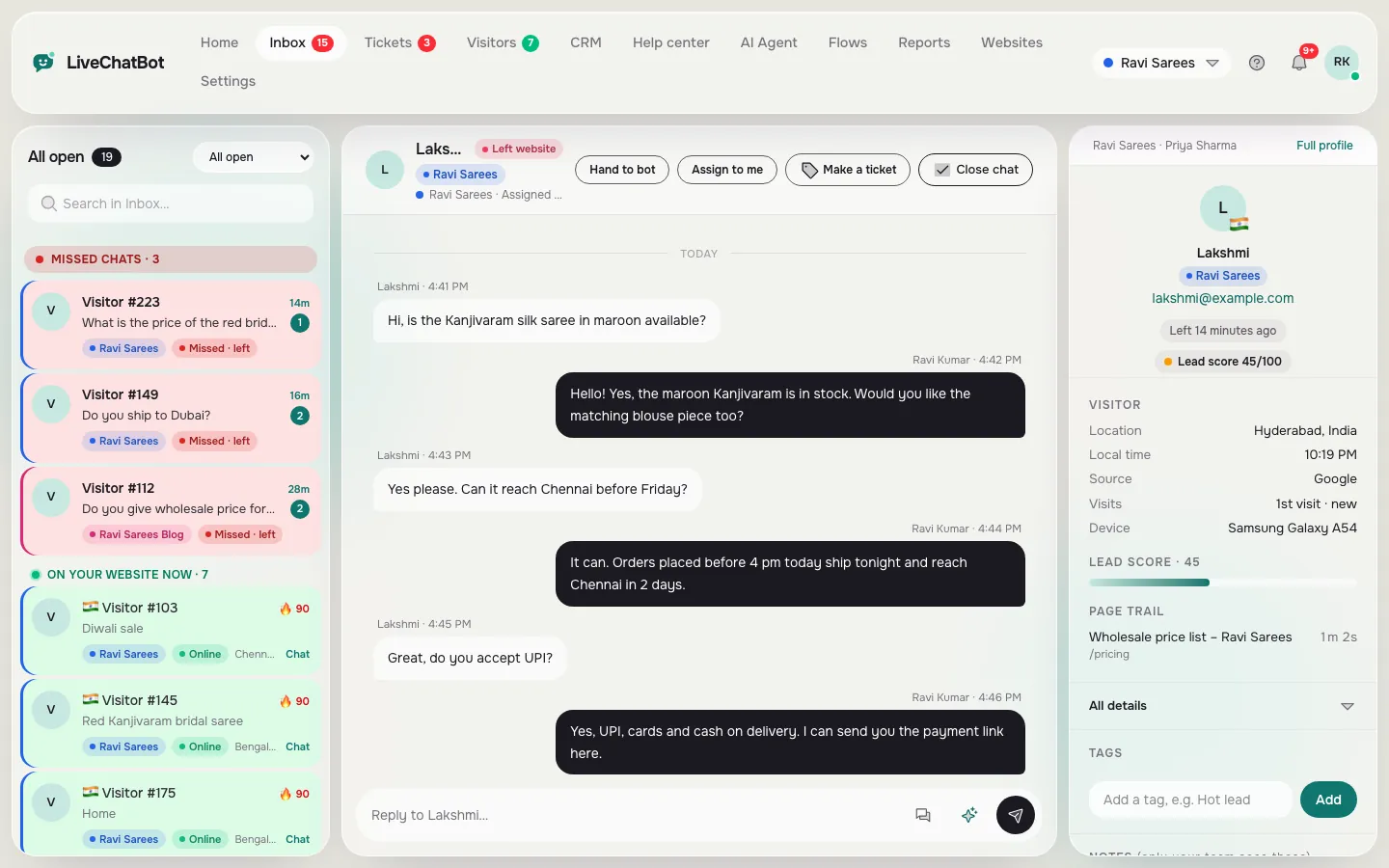
The inbox is built around one question: who should I answer now? It splits the screen into three parts, so you never have to open another tab to understand a conversation.
Left: the list
The list is grouped. Missed chats sit at the top in red, so a visitor who wrote and got no reply is never buried. Next come people on your website now, with a fire icon when their lead score is high. Below them are your open conversations, newest first. Each row shows the visitor, the last message, the website it came from (with its own color) and how long ago they wrote.
Middle: the conversation
The messages read like any chat app. Above them is a small header with the actions you need most: Hand to bot, Assign to me, Make a ticket and Close chat. Below is the reply box, with buttons for saved replies and suggestions.
Right: the visitor
Here you see where the person is, their local time, how they found you, how many times they have visited, their device, their lead score and the pages they read before they wrote. Tags and private notes live here too, and Full profile opens their complete history.
Folders
Folders that match how a small team works
A team inbox gets messy when everything is in one long list. LiveChatBot gives you a few simple folders in a drop-down above the list:
- All open: every conversation that is not solved.
- Needs a reply: the visitor wrote last, so the next move is yours.
- Unassigned: nobody has taken it yet.
- My open: chats assigned to you.
- AI Agent: chats the AI Agent is handling on its own.
- Solved: finished conversations, for when a customer comes back.
- Your teams: if you set up teams like Sales or Support, each gets its own folder.
Most owners keep Needs a reply open during the day and glance at AI Agent once in a while to check the answers.
Speed
Reply faster without sounding like a robot
Speed matters in chat, but copy-pasted answers feel cold. The inbox has three tools that help you answer quickly and still sound like a person.
Saved replies
Write your common answers once: delivery times, return policy, opening hours, how to pay. Insert one with a click, and {name} fills in the visitor’s name. The same saved replies work in canned responses for tickets too.
Smart reply chips
Above the reply box, LiveChatBot suggests answers from your saved replies and help articles that match the visitor’s question. Tap one, edit a word or two and send. See AI reply suggestions for how the matching works.
Typing preview
You can see what a visitor is typing before they press send. That gives you a few seconds to find the answer, so your reply arrives right after their question.
Context
Everything you need to know about the visitor, without asking
Good replies come from context. Before you type, you can already see that this person is in Chicago, it is 10 pm there, they came from Google, this is their first visit, and they spent two minutes on your wholesale price list.
That changes the answer. Instead of “How can I help?”, you can write “Hi! Are you looking at bulk prices? I can share the list for 20 pieces.”
The right column also keeps tags (like Hot lead or Wholesale) and private notes that only your team can read. Next time the visitor writes, whoever answers sees the same notes. For the full story, open their visitor profiles page.

Hand-offs
Pass a chat to the right place in one click
A shared inbox only works if handing a chat over is easy. Every conversation header has four buttons:
- Hand to bot gives the chat back to the AI Agent, for example after you have answered the tricky part.
- Assign to me (or to a teammate) makes it clear who owns the conversation. Others can still read it.
- Make a ticket turns the chat into a numbered help desk ticket with the full history, for questions that take days. See help desk software.
- Close chat marks it solved. If the visitor writes again, it reopens.
Because everyone sees the same list, two people never reply to the same visitor at the same time, and a chat assigned to someone on leave can be picked up by anyone.
Many websites
One inbox for all your websites
If you run more than one website, you do not need a second login or a second tab. Every site you add sends its chats to the same inbox. Each website gets a color label, so you can see at a glance that one chat came from your shop and another from your blog.
You can filter the list to one website when you want to focus, or keep them together when you are covering everything. Agencies and owners with several brands use this a lot; see live chat for multiple websites for how sites, designs and limits work.
Good to know
Honest limits of the shared inbox
Chat, not email
The inbox is for website chat, the chat link and connected WhatsApp and Messenger. It is not an email client.
Phone app is Android
On Android there is an app with instant alerts. On iPhone, use the inbox in the browser and add it to your home screen.
Visitor limits
On the free plan each website has a monthly visitor allowance. See pricing for packs.
Get started
Set up your shared inbox in five minutes
Create a free account at livechatbot.in, add your website and paste the chat code (or install the WordPress live chat plugin). Send yourself a test message from your site and watch it arrive.
Then invite your teammates from Team, write five saved replies for your most common questions, and install the mobile app so new chats reach your phone. That is all you need for a working team inbox.
Frequently asked questions
What is a shared inbox in LiveChatBot?
One list of every chat from all your websites, where your whole team can read, assign and answer conversations, with the visitor’s details beside each chat.
Can two people answer the same chat by mistake?
Everyone sees the same list and who a chat is assigned to, so it is clear who is answering.
Does the inbox work on a phone?
Yes. Use the Android app or open the inbox in any phone browser.
Can I see chats from only one website?
Yes. Filter the list by website, or keep all websites together.
Is the inbox free?
Yes. The inbox is part of the free plan, with no per-agent fee.
Keep reading
Related guides
Live Chat for Multiple Websites: One Account, One Inbox, a Different Look for Every Site
Live Chat for Teams: Add Agents, Choose What They Can Do, and Route Chats to Sales or Support
Answer every visitor from one inbox
One list for every website, the visitor beside every chat, and replies in seconds. Start free on livechatbot.in.