Live Chat Link: A Full-Page Chat You Can Share on WhatsApp, Instagram, Email or a QR Code
Live chat link is a page with just your chat on it, at its own web address. Share it anywhere people can tap a link: your Instagram bio, a WhatsApp status, an email signature, a Google Business profile or a printed QR code. People open it, type, and the message lands in the same inbox as your website chats.
⚡ In short
- Every website in LiveChatBot gets its own chat link, found in Settings → Chat link.
- The link opens a full-page chat with your name, colors, welcome text, AI Agent and Flows.
- Chats from the link arrive in your shared inbox, next to website chats, with the same alerts.
- Useful for businesses that sell on Instagram, WhatsApp or marketplaces and have no website, or a slow one.
Real screens
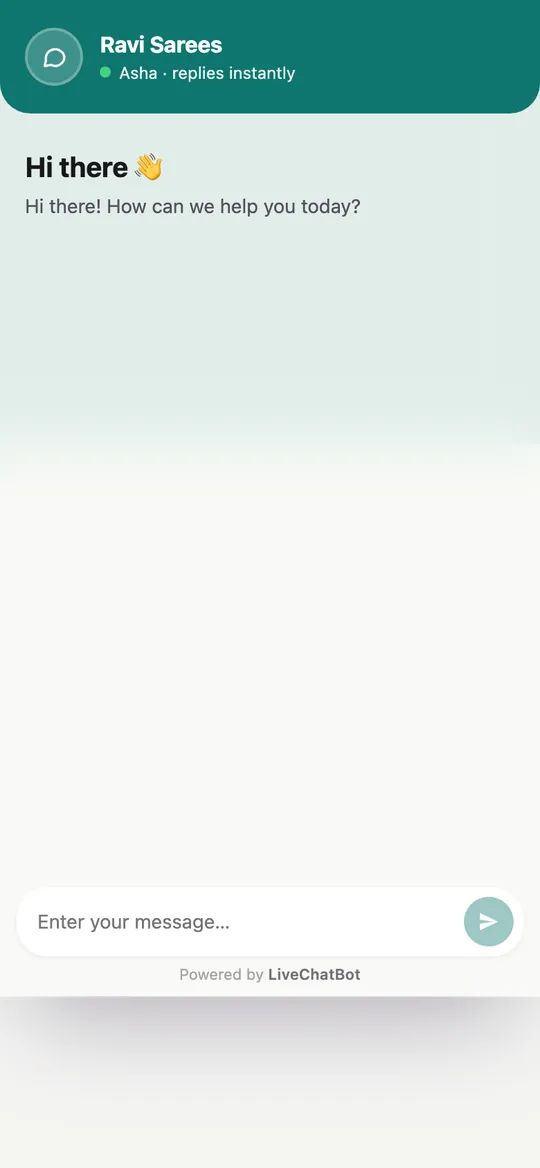
Where to find the link, and what people see when they open it
Real screens from the LiveChatBot panel, shown with sample data. Click any picture to see it full size.

Why
When a live chat link beats a chat bubble
A chat bubble only helps people who are already on your website. Many small businesses meet customers somewhere else first: an Instagram post, a WhatsApp forward, a flyer at the counter, a listing on a marketplace. In those places you cannot install a widget, but you can always share a link.
The chat page also helps when your website is slow or hard to edit. Instead of fixing the site first, you can send people straight to a clean, fast chat page today.
Typical places to share it
- Instagram and Facebook bio, and story link stickers.
- WhatsApp Business profile and quick replies.
- Email signatures and order confirmation emails.
- Google Business profile “website” or “chat” field.
- A QR code on packaging, menus, shop counters and visiting cards.
- Marketplace profiles where you are allowed to add a link.
A live chat link is also handy for staff. A delivery partner, a front-desk person or a salesperson at an event can share it with a customer who has a question they cannot answer on the spot.
How it works
How the chat page works, step by step
- Open Settings → Chat link. You see your link, a Copy link button and an Open button.
- Open it once yourself. It shows your business name, an online status, your welcome message and a message box. It uses the same colors and language as your website chat.
- Share it. Paste the link wherever your customers already are, or turn it into a QR code with any free QR maker.
- Answer in the inbox. Messages from the link appear in your inbox with a sound, a browser alert and a phone alert, just like website chats.
Because the link belongs to one website in your account, it also uses that website’s AI Agent and chat flows. If the AI Agent is on, it can answer common questions at night and pass the rest to your team in the morning.
Same tools
Everything you use for website chat works on the link
The chat page is not a cut-down version of your chat. When someone writes through the link, you get the same visitor details you get for website chats: location, device, local time and how they arrived. You can assign the chat, add tags and notes, use saved replies, make a ticket or add a deal in the CRM.
If nobody is online, the away form and the chat rescuer ask for an email and phone number, so the conversation can continue later. See offline live chat for how that works.
And because all chats land in one shared inbox, you never have to check a separate tool for link chats.
Ideas
Five ways small businesses use a live chat link
Instagram shop
Put the chat page in your bio. Followers ask about sizes and prices without leaving the app for long.
Printed QR code
A QR on the bill or the box: “Questions about your order? Scan to chat.”
Order emails
Add “Chat with us” to confirmation emails, so delivery questions come to chat instead of phone calls.
Google profile
Use the link as the chat or website link on your Google Business profile.
Events and stalls
A standee with a QR at an exhibition collects inquiries you can answer later.
Phone
Answer chat page messages from your phone
Most people who tap a live chat link are on a phone, and most small business owners answer from a phone too. The mobile app for Android alerts you about a new message in about a second, even when the app is closed, and you can reply from the alert. On iPhone, open the inbox in the browser and add it to your home screen.
Keep replies short and quick
People who come from Instagram or a QR code usually want one quick answer: a price, a size, a delivery date or your opening hours. Write those answers once as saved replies, so you can send them in two taps. If the same questions come every day, add them to the AI Agent’s knowledge so it can answer at night.
Move serious inquiries forward
When a chat turns into a real order or a bulk inquiry, add a deal in the CRM from the visitor’s profile, so the follow-up does not get lost in your phone.
Checklist
Before you share it with customers
Spend five minutes on these before the link goes on a printed QR code, because printed links are hard to change later.
- Write a clear welcome. Say what people can ask, such as prices, sizes, delivery or appointments.
- Set your colors. Use your brand color so the page feels like yours, not a random tool.
- Turn on the away form. Make sure messages sent at night still reach you with an email and phone number.
- Add five saved replies. Cover the questions you get every day.
- Test it from another phone. Send a message and check that the alert reaches you and the reply reaches the customer.
Good to know
Honest limits
One link per website
Each website in your account has one chat page. Add another website for a separate brand.
Not a website builder
The page is a chat, not a full website with products or menus.
Counts as visitors
People who open the link count towards the website’s monthly visitors, like website visitors.
Get started
Get your chat page in two minutes
Create a free account at livechatbot.in and add your business as a website (you can do this even without a real website). Open Settings → Chat link, copy the link and open it on your phone. Set your colors and welcome text in chat widget customization, then share the live chat link in your bio and on a QR code. Install the mobile app so you hear about every new chat.
Frequently asked questions
Do I need a website to use the chat link?
No. Add your business as a website in LiveChatBot and share its chat page. It works on its own.
Where do chats from the link go?
To the same inbox as your website chats, with the same alerts on your browser and phone.
Does the AI Agent answer on the chat link?
Yes. The link uses the same AI Agent, Flows, colors and language as the website it belongs to.
Can I turn the link into a QR code?
Yes. Copy the link and paste it into any QR code maker, then print it.
Is the chat link free?
Yes. It is part of the free plan.
Keep reading
Related guides
Chat Widget Customization: Colors, Button, Position, Language and Where the Chat Shows
Share one link, get chats from everywhere
A full-page chat for your bio, WhatsApp, emails and QR codes, answered from one inbox. Start free on livechatbot.in.